
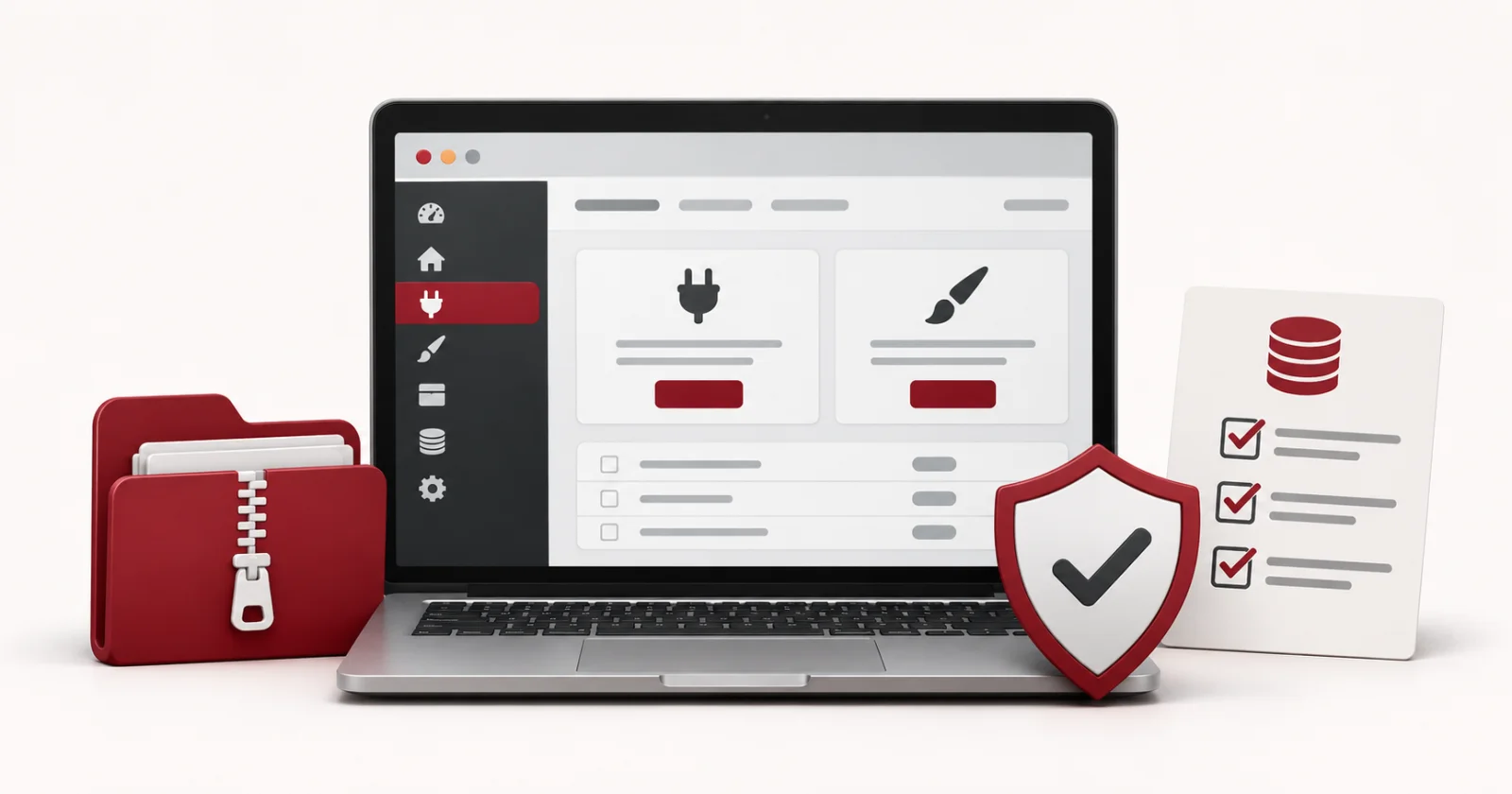
If you’re looking for how to install GPL WordPress plugins, start with the installable ZIP, a recent backup, and a staging site. On a self-hosted WordPress site, plugins are uploaded under Plugins and themes under Appearance. Use staging, a private copy of your site, to check that the package works with your setup before activating it on the live site.
What to check before uploading a ZIP
Verify the source and identify the installable file
Download from a source you can identify and that provides a version history. Avoid packages advertised as bypassing license checks, and skip files from anonymous mirrors or unsolicited links. If the publisher supplies a checksum for the exact ZIP you received, compare it before uploading. A malware scan can catch some problems, but it cannot establish that a package is safe.
Open the download locally if it contains documentation, demo data, or several ZIP files. Look for the actual plugin or theme ZIP inside the outer bundle and keep that inner ZIP intact for upload. For more about what the license covers, see our WordPress GPL license guide.
Check requirements and make a restorable backup
Compare the package requirements with your WordPress and PHP versions. You can find your environment details under Tools → Site Health → Info. Check required plugins, parent themes, and compatibility with WooCommerce or Multisite if you use them. For example, install and activate Elementor before adding Elementor Pro, and check that the two versions are compatible.
Back up the database and site files, including uploads. Make sure you know how to restore them and keep a copy accessible outside WordPress. Your host’s backup feature or a tool such as UpdraftPlus Premium can help. Set up staging with the same PHP version and a similar plugin configuration. On a store’s staging copy, use test payment settings and prevent emails from reaching real customers.
How to install WordPress plugins from ZIP
- Sign in to the staging site with an account that can install plugins. Install and activate any required base plugin first.
- Go to Plugins → Add New Plugin → Upload Plugin and choose the installable ZIP from your computer.
- Click Install Now. When WordPress confirms the installation, click Activate Plugin.
- Open the plugin settings and test its main feature. For example, submit a test form and check that it arrives, or edit an Elementor page and confirm the published layout on mobile.
- Once staging passes, take a fresh live-site backup and repeat the installation there. Test the affected feature again after activation.
How to install GPL WordPress themes
- On staging, open Appearance → Themes, then select Add New Theme → Upload Theme.
- Select the installable theme ZIP and click Install Now. If you have a child theme, install its parent theme first, then upload and activate the child theme.
- Use Live Preview if it’s available, then activate the theme on staging. Check the homepage, navigation, header, footer, and mobile layout. On a WooCommerce site, also check product pages, the cart, and checkout.
- Record theme-specific settings you may need to reapply, such as menu assignments and template settings. After a fresh backup, repeat the installation on the live site and recheck your most important pages.
Common installation errors and how to fix them
“No valid plugins were found” or “The theme is missing the style.css stylesheet”
Check whether you uploaded the outer download bundle, a source-code archive, or a theme in the plugin uploader. Open the archive and find the installable ZIP. If your theme package still lacks its main style.css file, get the correct installer from your source.
“The uploaded file exceeds the upload_max_filesize directive”
Confirm you selected the installer and check its size against your host’s PHP upload limit. Ask your host to adjust the limit if needed. For Multisite, also check whether the network administrator has set a lower upload limit.
“Destination folder already exists” or a critical error after activation
For an existing folder, check whether the plugin or theme is already installed. If you intended to update it, back up first and test the replacement on staging. For a critical error, use the WordPress Recovery Mode email if available, then deactivate the affected plugin or switch back to a working theme. Check your hosting error logs and the package requirements before trying again.
Frequently asked questions
Are GPL WordPress plugins safe?
Safety depends on the source, the package, and ongoing maintenance. The GPL defines licensing rights for the code. Assess security separately by checking where the ZIP came from, whether security fixes are available, and how the package behaves in staging.
Do I need a license key to install the ZIP?
WordPress can upload an installable ZIP without a vendor license key. Depending on the product, automatic vendor updates, cloud features, or support may require a separate subscription or account. Check what is included before installing a package you plan to rely on.
How do I keep manually installed plugins and themes up to date?
Check release notes regularly and prioritize security fixes. WP Shopefy includes six months of product updates through your account. When an update is available, download the new ZIP and follow our guide to updating WordPress plugins safely before applying it to your live site.
Ready to choose a package? Browse GPL WordPress plugins and themes on WP Shopefy and check the product’s installation requirements against your setup.